
The Use cases screen
The Idun Cockpit Use cases screen shows what your teams really do with AI: the uses found in the exchanges with your tools, department by department and case by case, with the tool estate and the priorities. Use cases are discovered in actual usage, not declared in advance. The real AI usage audit then sets them against what your teams say in interviews.
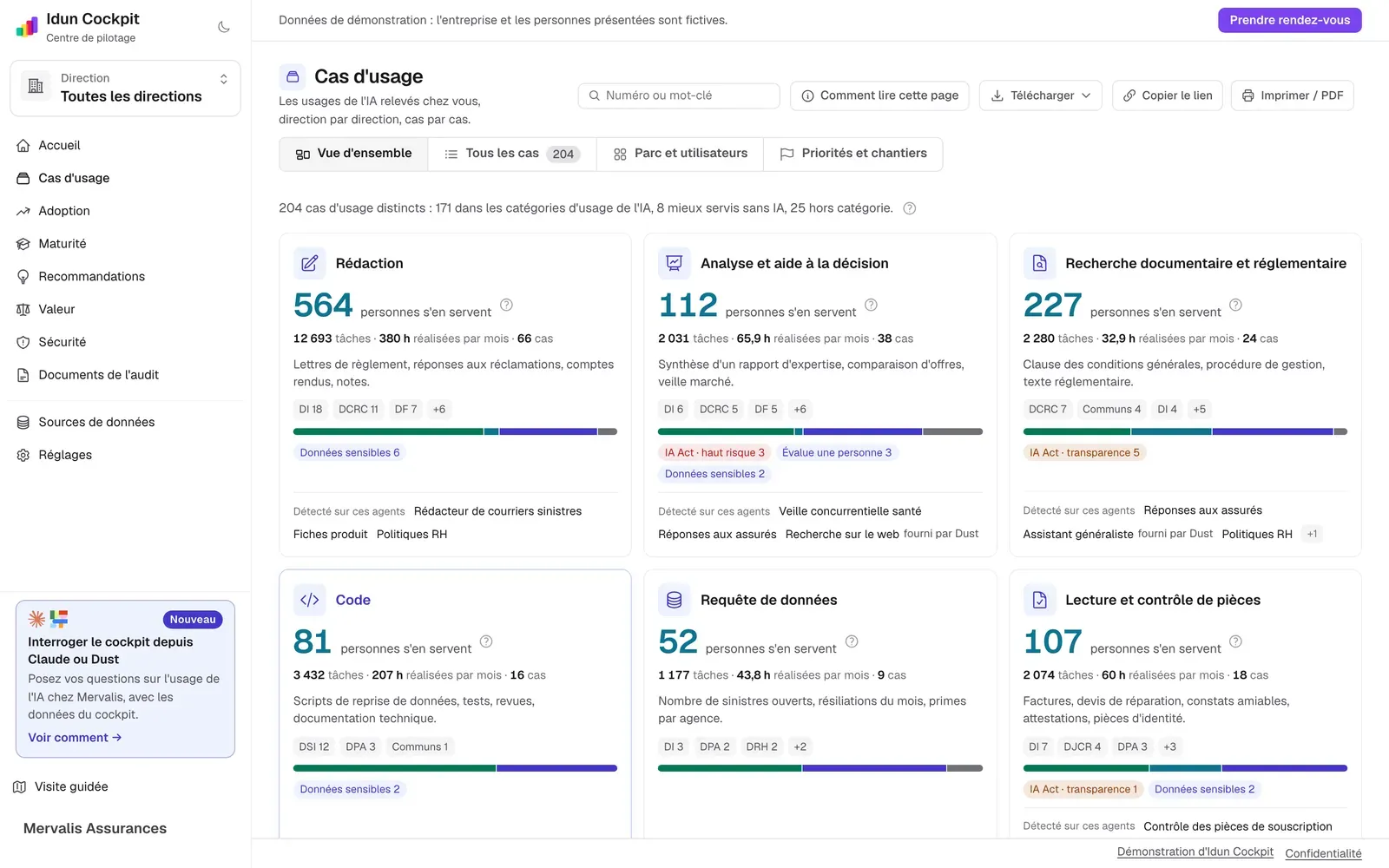
The screen as it appears in the public demo of Idun Cockpit, on Mervalis Assurances, a fictional company. Interface shown in French: the public demo exists in French only.
What the Use cases screen shows
Section titled “What the Use cases screen shows”- The overview. Use cases grouped into broad categories, such as writing, analysis and decision support, document search, code, or reading supporting documents. For each: how many people use it, how many tasks it counts, and the hours it gives back each month.
- All cases. The full list, case by case, with the department that owns each case, the tools that serve it and the signals to check, such as sensitive data.
- The estate and its users. The company’s AI tools and who uses them.
- Priorities and workstreams. The cases to address first, and what is already under way.
How to read it
Section titled “How to read it”A use case is a task your teams hand to AI repeatedly. The Cockpit classifies each exchange by task, use case and tool, then counts everything by department: nobody appears in the results. The same case served by several tools reads on a single line, which shows where one implementation would be enough. The search, at the top of the screen, finds a case by its number or a word, and the “Download” button exports the list.
The questions it answers
Section titled “The questions it answers”- What do your teams actually use AI for?
- Which use cases give back the most time, and to which departments?
- Which uses had you not identified?
- Which case is built several times, on several tools?
This screen feeds the Usage deliverable; the adoption of these uses reads on the Adoption screen.
To see what the tool shows on your own tools, book a call.